Overview
Update your Nuonic account password from the Settings page using your current password and a new password.
Prerequisites
- You are logged in to Nuonic.
- You know your current password.
Steps
- In the left sidebar, select
Change Passwordunder Settings. - In the
Current Passwordfield, enter your existing password. - In the
New Passwordfield, enter your new password. - Select
Change Passwordto save.
Screenshots
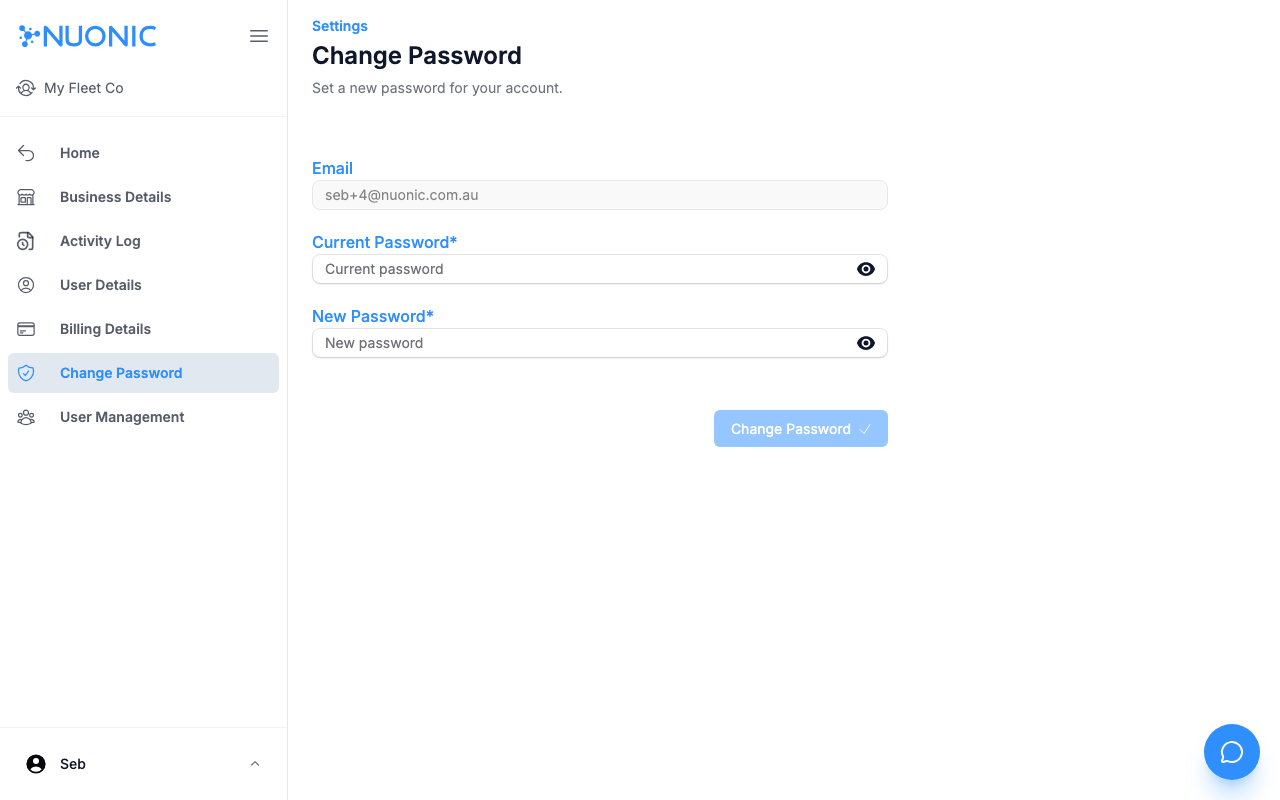
The Change Password page is found under Settings in the left sidebar. Enter your current password and a new password, then select Change Password.
Troubleshooting
- If
Change Passwordremains disabled, ensure both theCurrent PasswordandNew Passwordfields are filled in. - If you see an error after submitting, confirm your current password is correct.
- If you have forgotten your current password, log out and use
Forgot your password?on the login page.