Overview
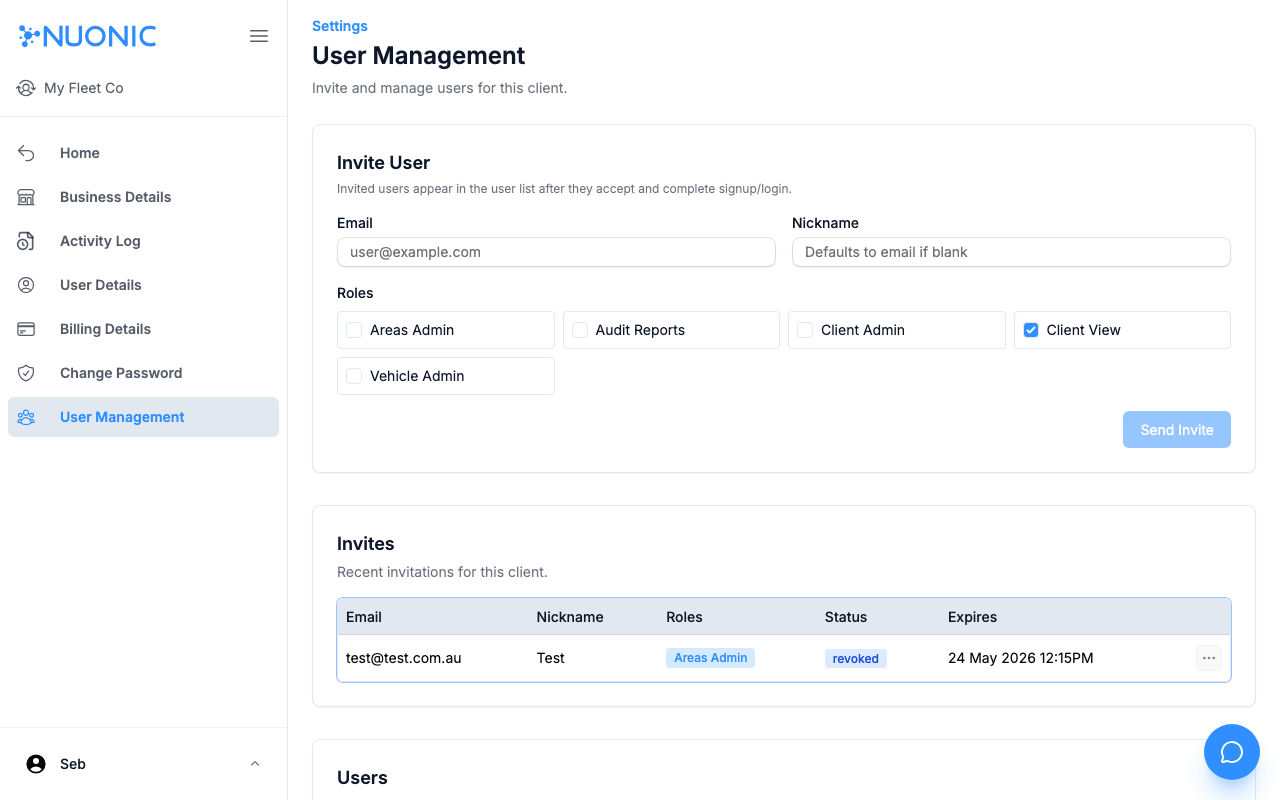
Invite team members to your Nuonic account from the User Management page. Invited users receive an email and appear in the user list once they accept and complete sign up.
Prerequisites
- You are logged in to Nuonic with a
Client Adminrole.
Steps
- In the left sidebar, select
User Managementunder Settings. - In the
Invite Usersection, enter the new user'sEmailaddress. - Optionally enter a
Nickname— defaults to their email if left blank. - Select one or more
Rolesfor the user:Client View— read-only access (default)Client Admin— full admin access including user managementAreas Admin— manage geofence areasVehicle Admin— manage vehicle/asset recordsAudit Reports— access to audit report exports
- Select
Send Invite. The user will receive an invitation email.
Screenshots
The User Management page shows the invite form at the top, pending invitations in the middle, and all active users at the bottom. The Last Login column shows when each user last accessed Nuonic.
Troubleshooting
- If
Send Inviteis disabled, confirm a valid email address is entered and at least one role is selected. - If the user does not receive the invite, ask them to check their spam folder.
- If
User Managementis not visible in the sidebar, your account does not haveClient Adminpermissions.