Overview
BAS Reports let you create stored FTC calculations for any reporting period and fuel use profile, so you can prepare a complete claim view in one place.
These reports can include:
- Manually configured items (for example untracked assets or saleable fuel derivatives)
- GPS-calculated FTC results for connected assets
Fuel quantities can be sourced from uploaded fuel records or entered manually per report item.
For untracked vehicle items, on-public roads and off-public roads apportionment is set manually, including options such as Safe Harbour rates.
The goal of this workflow is to consolidate all FTC claim items in one report, across both tracked and untracked assets.
Steps
- Open
Tax Credits > BAS Reports. - Click
New report. - Choose
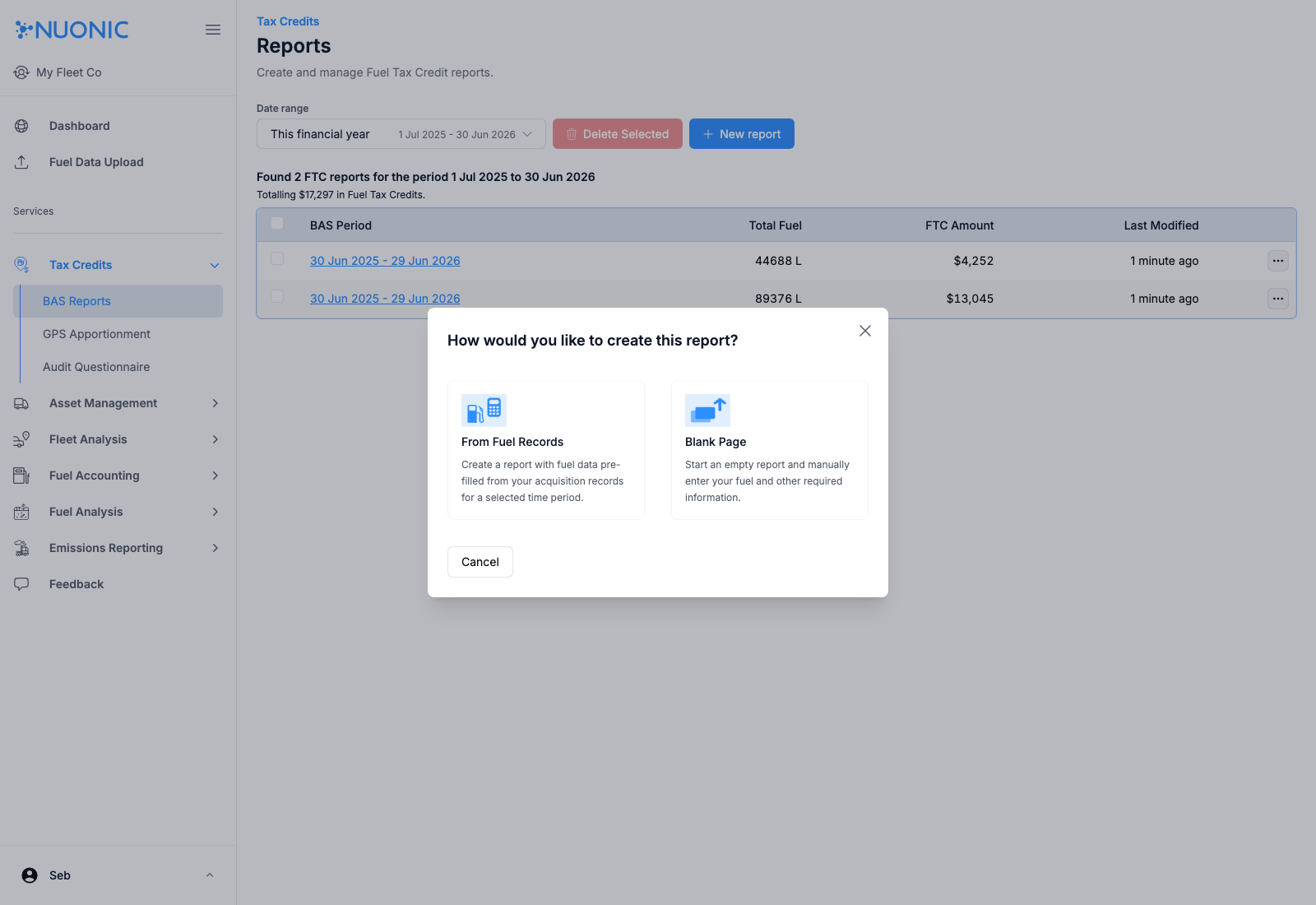
From Fuel Recordsif you have uploaded records, orBlank Pageif you are entering items manually. - If you selected
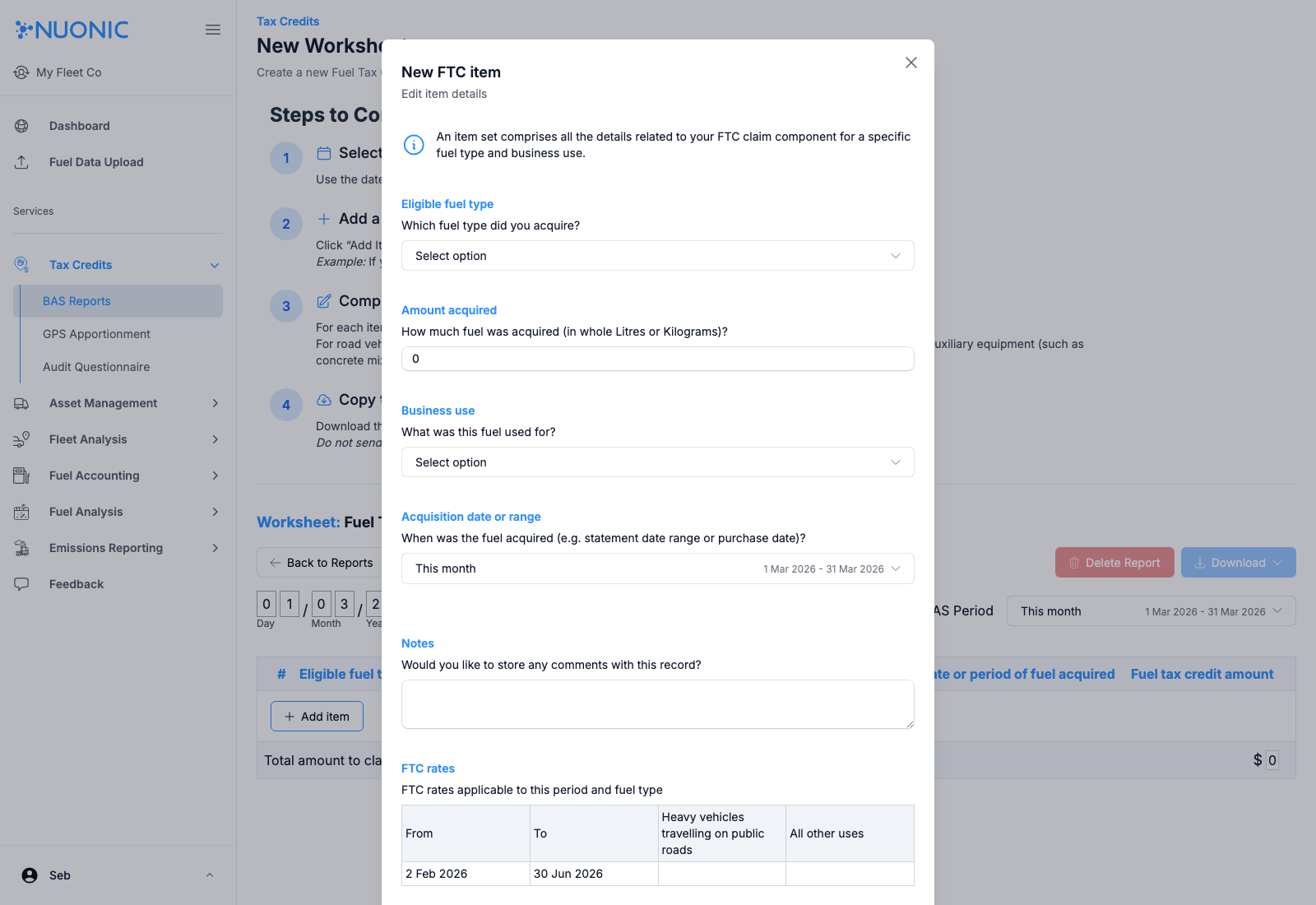
Blank Page, follow the worksheet prompts to add items and complete each line. - If you selected
From Fuel Records, select the fuel records to include and apply the asset/category treatment needed, then clickCreate FTC Report. - Fuel records selected in this flow are linked to the report and available in the audit export from the report screen.
- Connected assets apply GPS-based apportionment automatically, while untracked vehicle items require manual apportionment.
- In either flow, add additional manual items after report creation if required.
Screenshots
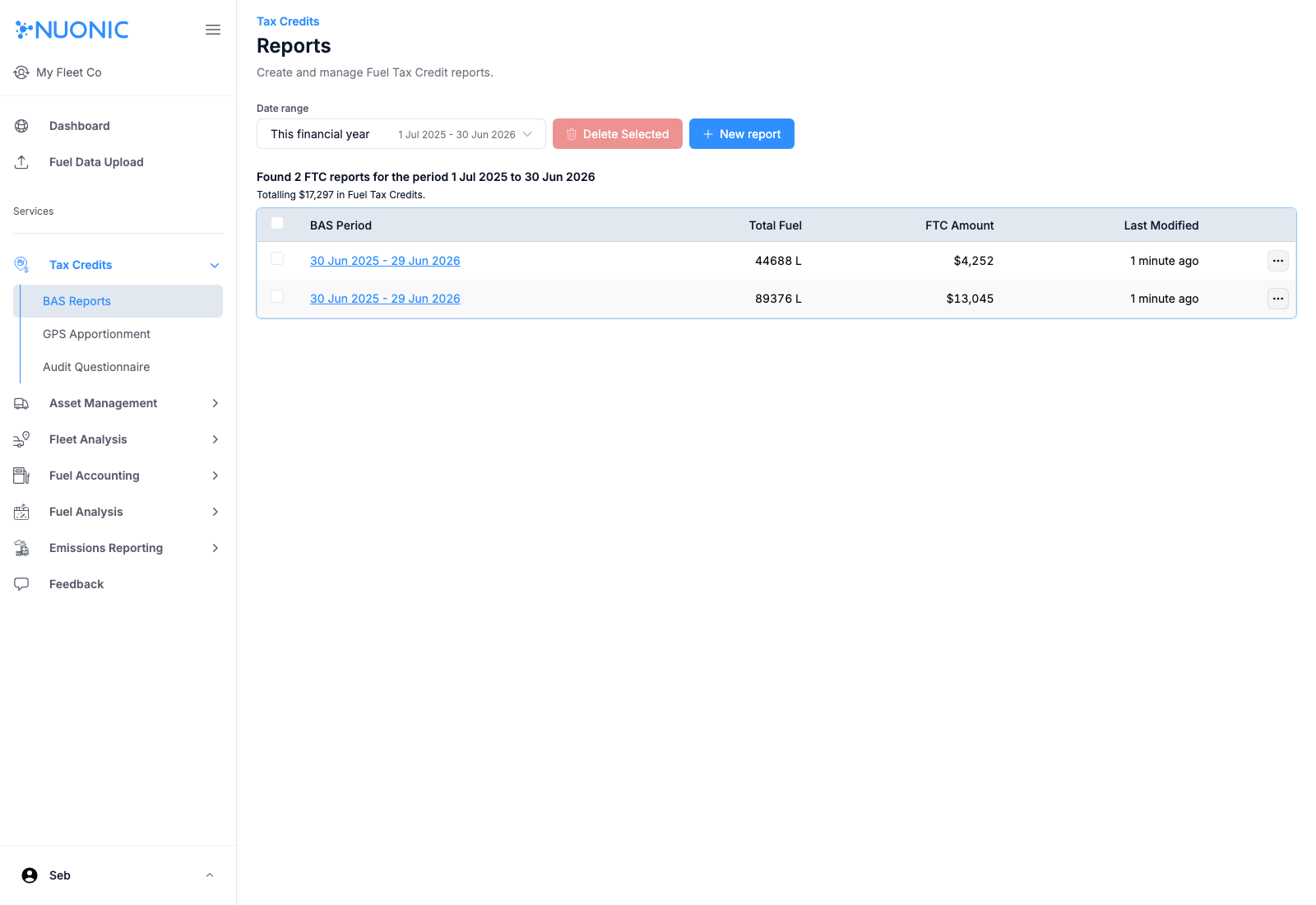
BAS Reports list page:
Create report method selection (From Fuel Records or Blank Page):
Manual entry FTC item form:
Note
This workflow is still a work in progress. Additional features to make BAS reporting faster and more intuitive are coming soon.
Troubleshooting
- If
New reportis not available, check your account permissions. - If uploaded records are missing, confirm they were imported successfully and fall within the selected BAS period.
- If totals look incorrect, review apportionment settings for untracked items before exporting.