Overview
Use Tax Credits > GPS Apportionment to review how Nuonic has classified activity across public roads, non-public roads, and auxiliary operation. The main review areas are Validation checks and Location review. For the FTC treatment of each category, see off-road fuel tax credits: what counts and what you can claim.
Steps
- Sign in to Nuonic.
- Open
Tax Credits > GPS Apportionment. - Set the
Date rangefor the reporting period being reviewed. - Review
Validation checksto identify trips that may require confirmation. - Review
Location reviewto inspect mapped activity, top locations, and custom geofences. - Validate flagged trips and location classifications before relying on FTC outcomes.
Validation checks
Validation checks helps identify trips that may need review before the GPS analysis is relied on for reporting.
High Idle Time
High Idle Time shows trips where more than 2 hours of idle time was recorded.
These trips may reflect:
- genuine long idle periods
- unusual operating activity
- potential GPS or device issues
Flagged trips should be reviewed and validated before relying on the result.
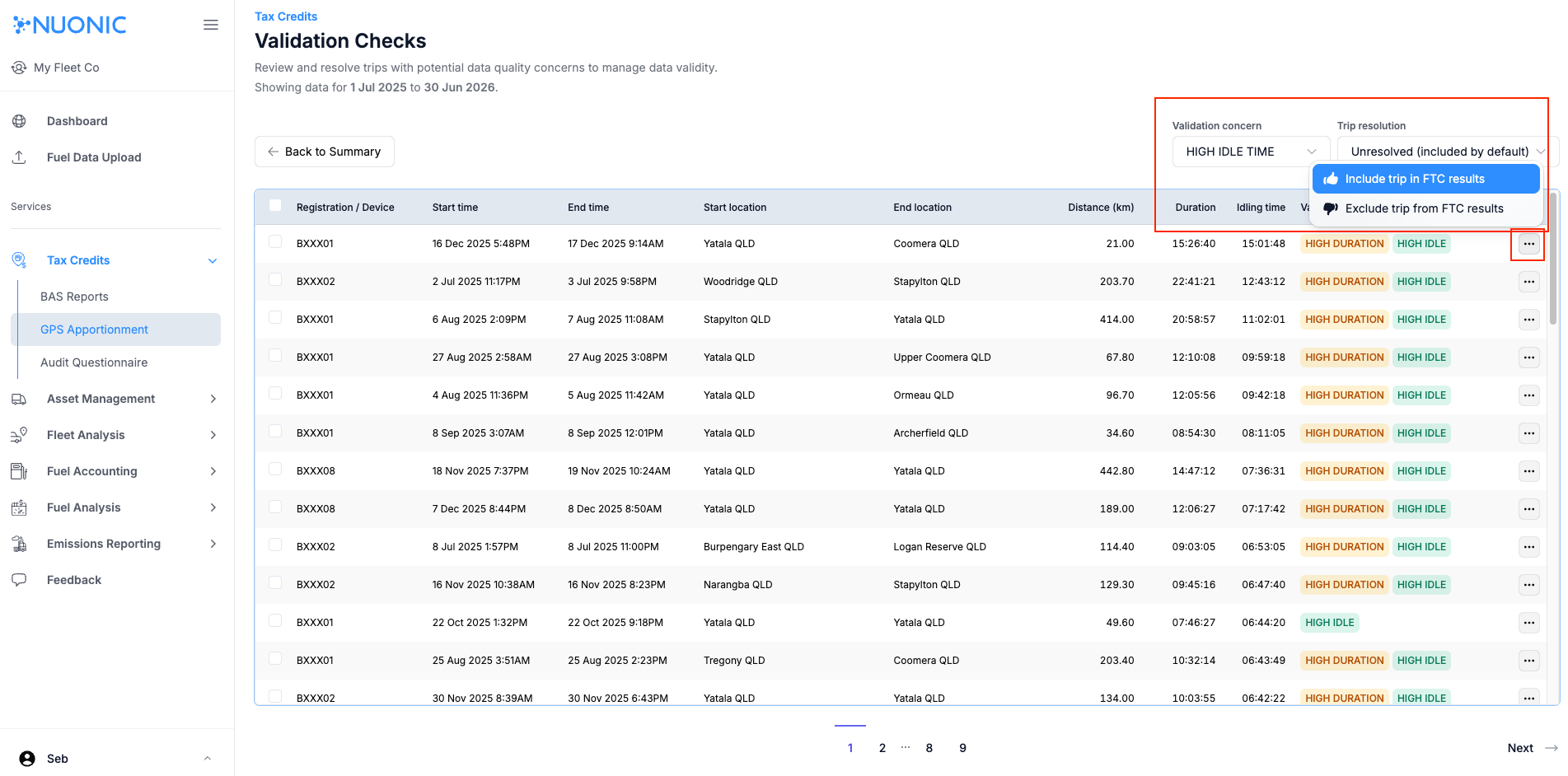 Shows trips with high idle time that should be reviewed and validated.
High Driving Time
High Driving Time shows trips where more than 8 hours of driving time was recorded.
These trips may reflect:
- genuine long-haul or extended driving activity
- unusual travel behaviour
- potential tracking anomalies
Flagged trips should be reviewed and validated before relying on the result.
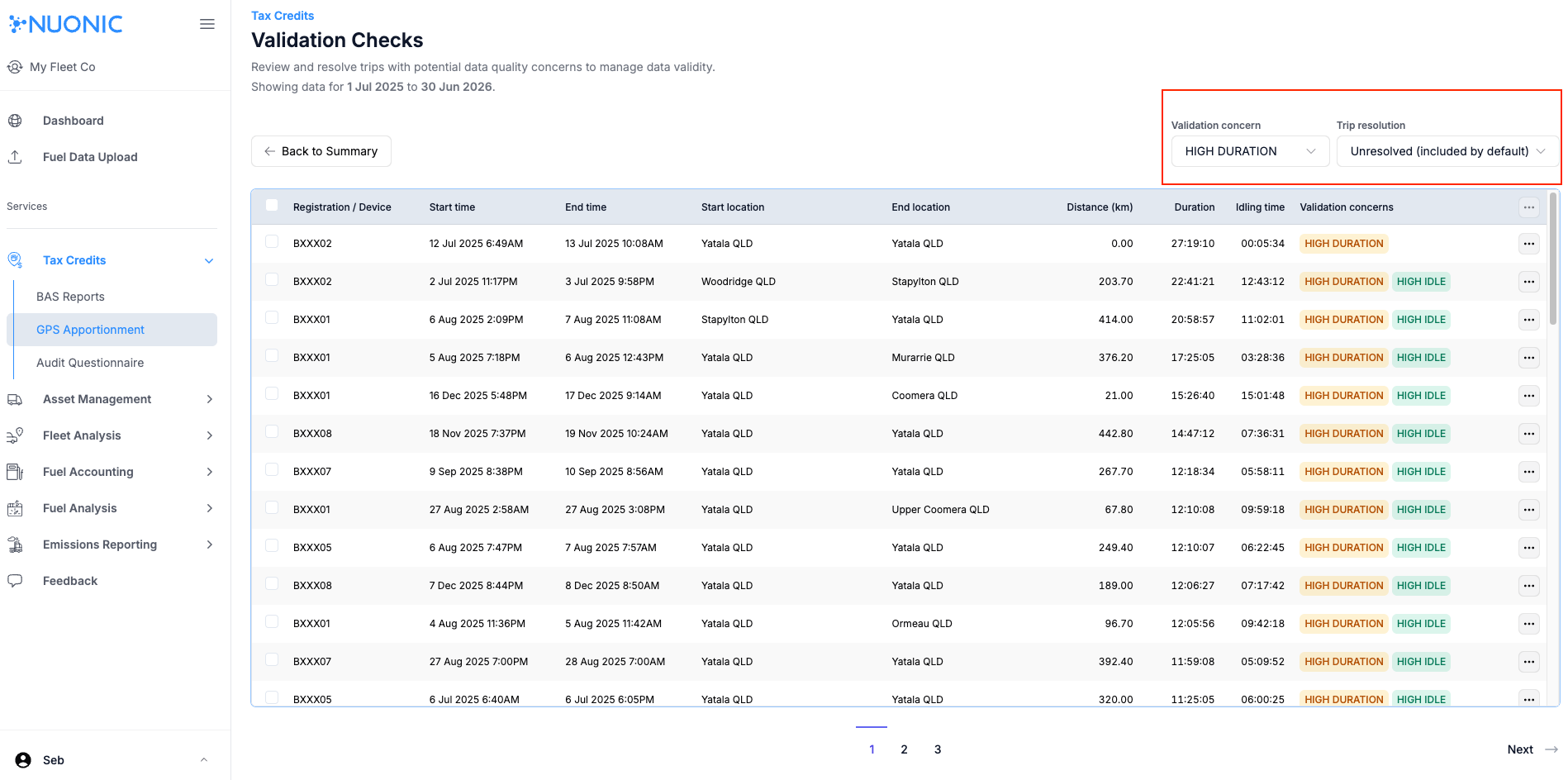 Shows trips with high driving time that may require validation.
High Distance
High Distance shows trips where more than 500 km was covered.
These trips may reflect:
- genuine long-distance travel
- unusual route or time patterns
- potential GPS data issues
Flagged trips should be reviewed before relying on the result.
Location review
Location review provides tools for checking how activity has been classified across public and non-public locations.
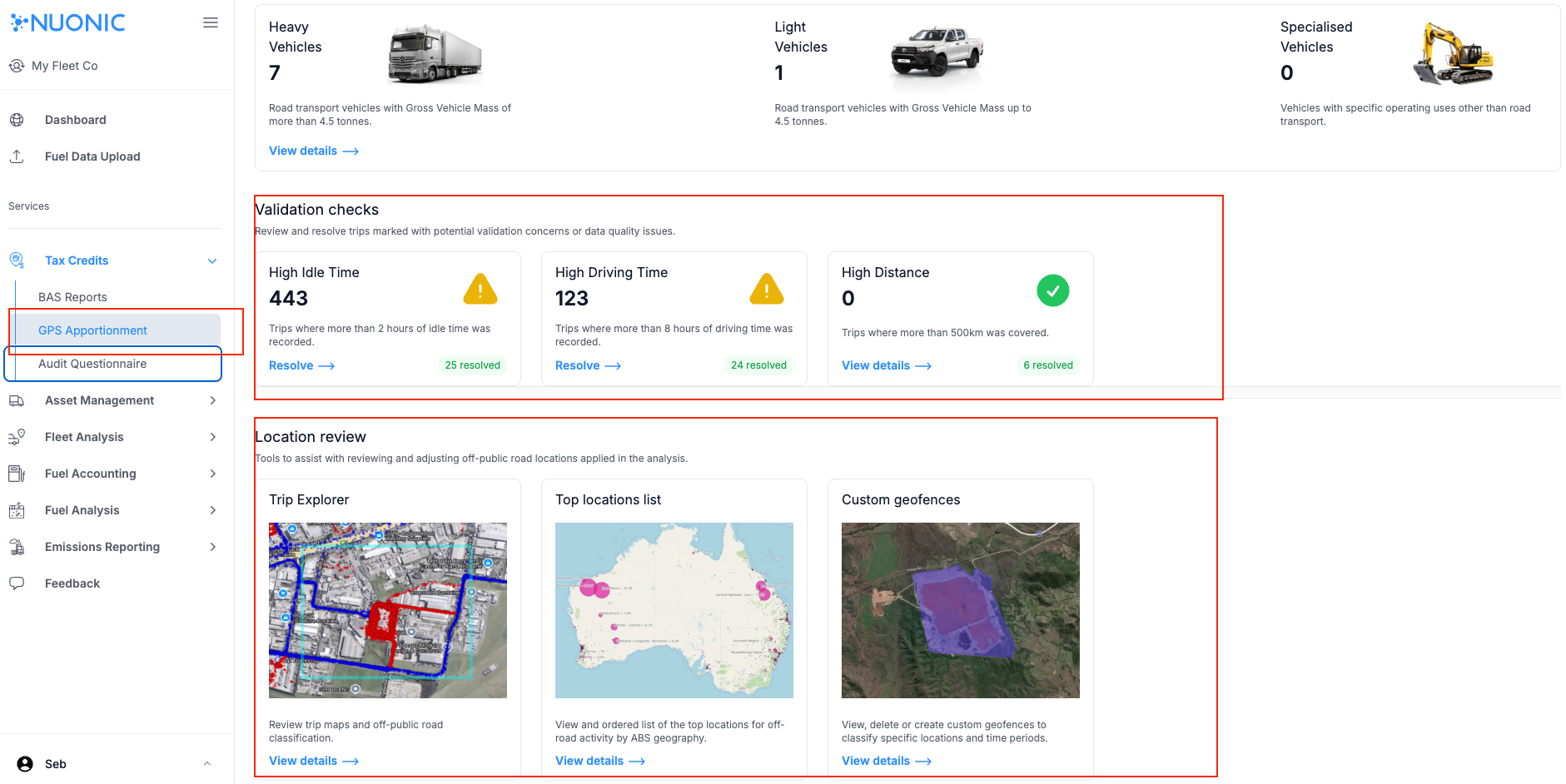 Shows the Validation checks and Location review sections in GPS Apportionment.
Trip Explorer
Trip Explorer is the main interactive map used to review on-public roads and off-public roads classification.
Open Trip Explorer from the Location review section by selecting View details.
Use Trip Explorer to:
- select a time period where GPS data is known to exist
- filter the map by asset
- filter the map by trip
- review mapped trip activity at different zoom levels
- inspect recorded activity at a specific location
A status badge appears in the top-right of the map:
Readyindicates the current data has loadedLoadingindicates data is still being processed and more map points may still appear
For larger datasets, loading may take time. Data can load in batches, so the map may continue to populate while the status shows Loading. It is normal to zoom into a region while data is still loading in order to inspect activity more clearly.
Selecting a point on the map opens a summary of the vehicles and trips recorded at that location. Selecting a registration or trip ID filters the map to that item. Selecting the information icon opens the trip detail panel without filtering the main map.
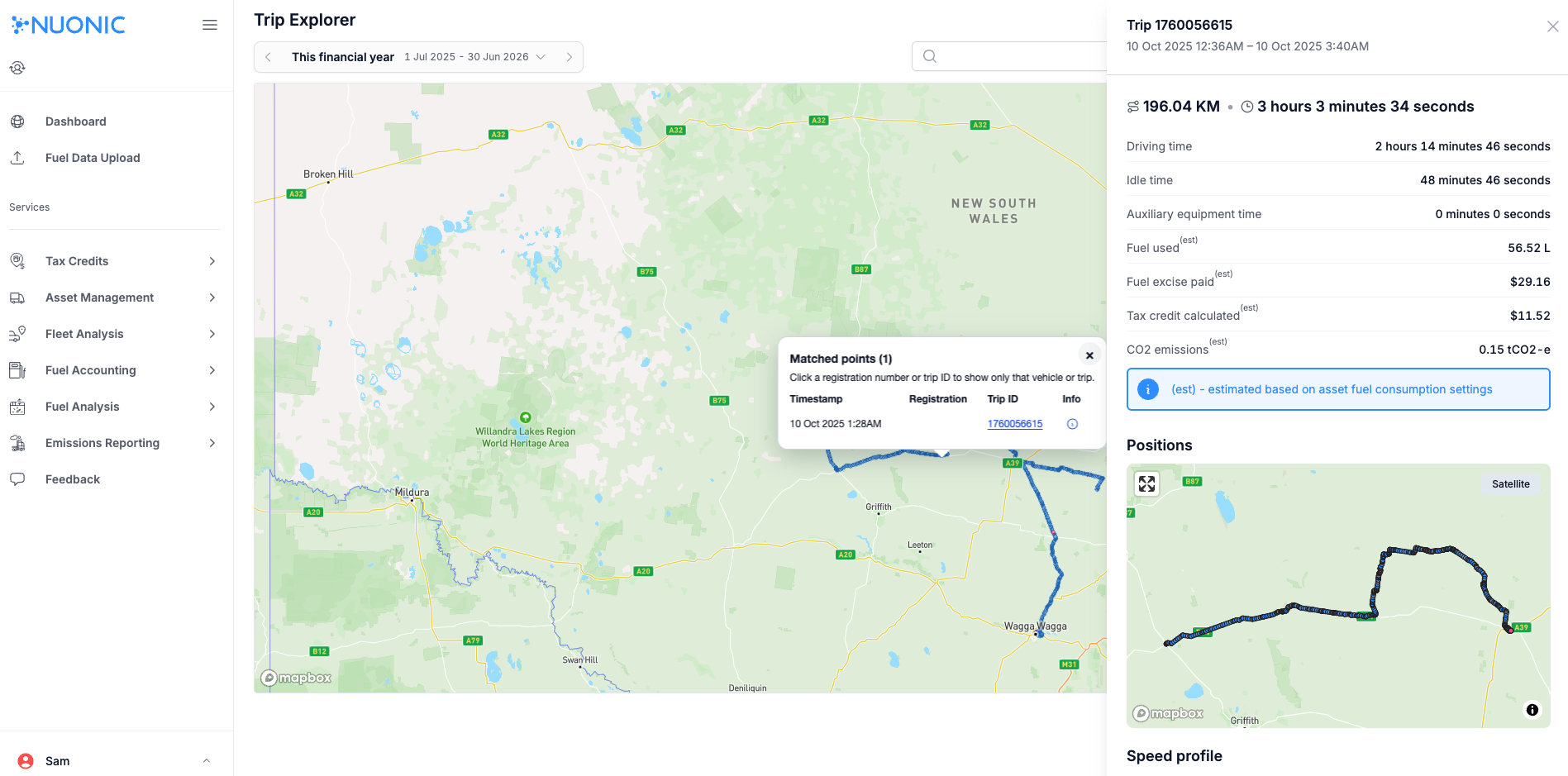 Shows Trip Explorer with filters, status badge, and mapped trip activity for location review.
Top locations list
Top locations list provides a quick overview of key locations where public and non-public activity has been recorded.
This is useful for:
- identifying the most significant activity areas first
- reviewing where GPS activity is concentrated
- checking whether high-activity areas appear to be classified correctly
 Shows the top locations list used to review key public and non-public activity areas.
Custom geofences
Custom geofences is used to create and manage location-specific rules for GPS apportionment. For geofence setup and editing steps, see How to add custom geofences.
Troubleshooting
- If the GPS apportionment summary is not available, review How to connect your GPS tracking service to connect devices to Nuonic.
- If the results seem incomplete, confirm GPS data was received for the selected period.
- If the map is still showing
Loading, wait for additional data to populate before final review. - If a flagged trip appears unusual, review it through
Validation checksbefore relying on the result. - If a location appears to be classified incorrectly, review
Trip ExplorerandCustom geofencesbefore requesting retrospective changes.