Overview
Use the Vehicle activity details view in GPS Apportionment to drill from summary metrics into individual trip-level records, map playback, and per-trip fuel/FTC calculations.
Steps
- Sign in to Nuonic.
- In the left navigation, go to
Tax Creditsand selectGPS Apportionment. - In
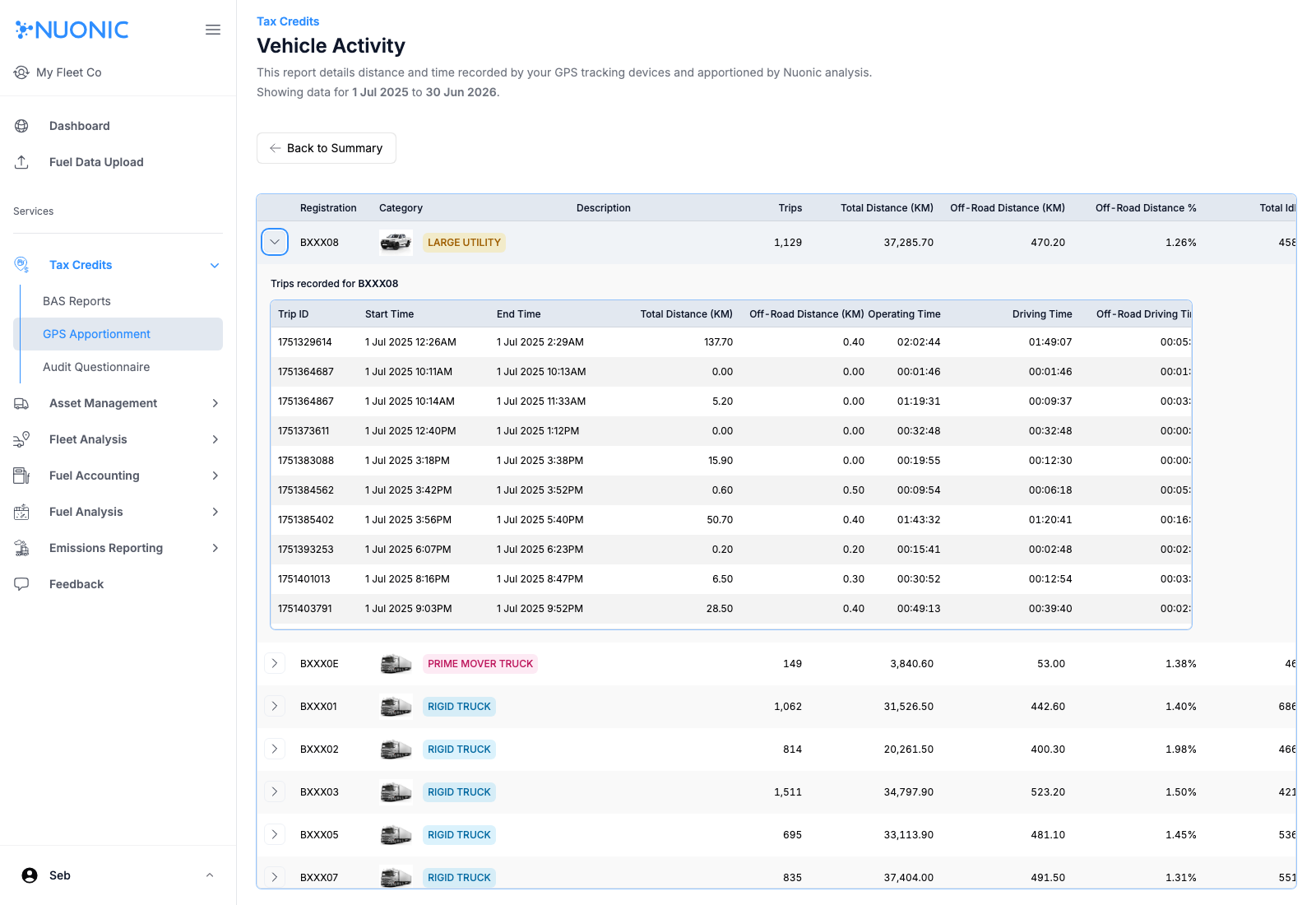
Results summary, clickView detailson eitherDistanceorOperating Time. - In the vehicle activity table, expand the row for the vehicle you want to review.
- Scroll across the table to review trip metrics.
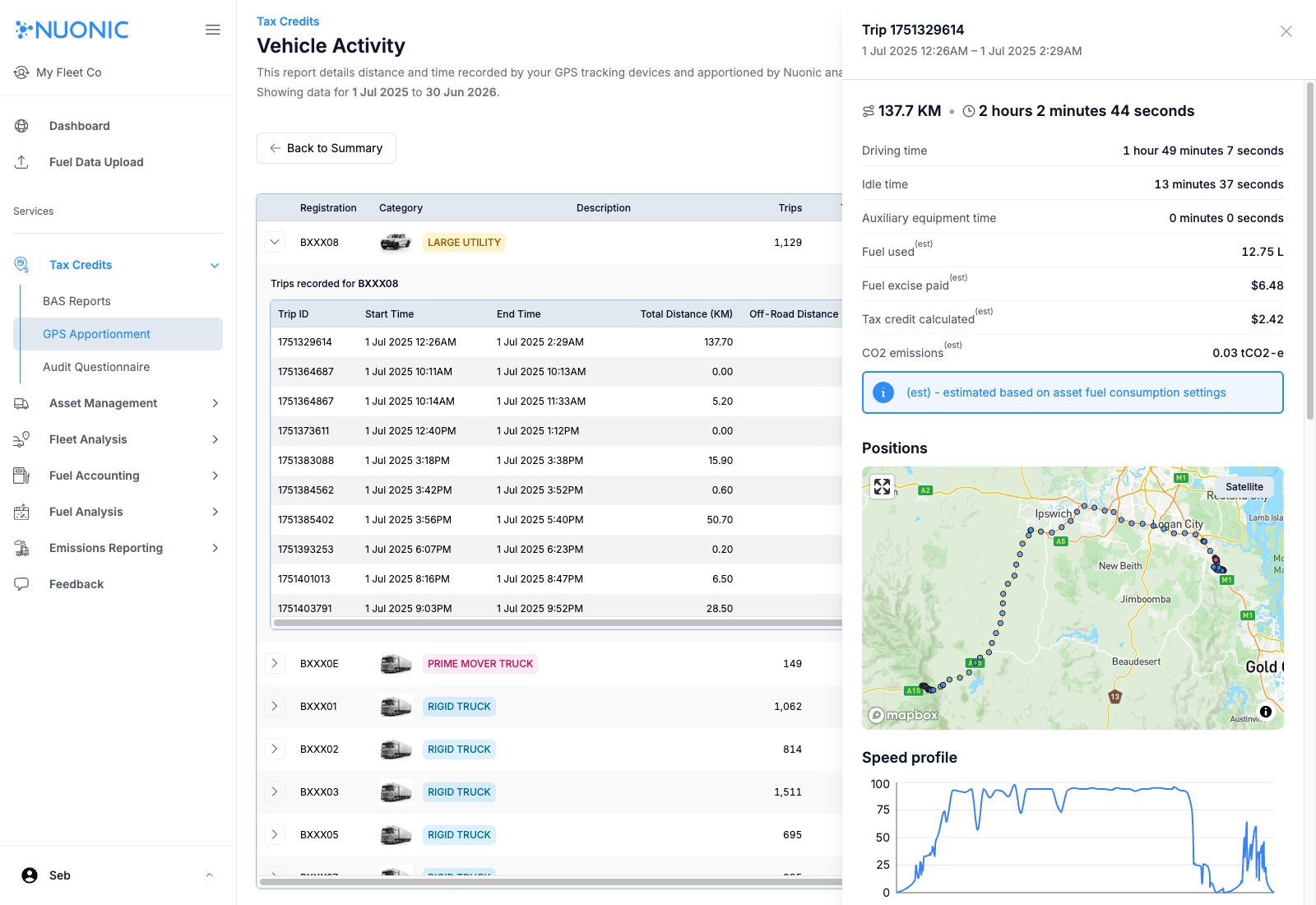
- Click the trip row you want to inspect to open the trip viewer drawer.
- Scroll down inside the drawer to review key metrics and the map view.
- Hover map points or the charts below the map to see point-by-point details and animate the trip sequence.
- Below the map, review the bars for
Idle time,Aux equipment use, andOff-public roads activity. - Continue down to the detailed tables that show the full fuel apportionment and FTC calculation for that trip.
Screenshots
Vehicle Activity page with the selected vehicle expanded to show trip rows:
Trip row selected with the trip details drawer and map panel visible:
Troubleshooting
- If
View detailsdoes not appear, confirm telemetry data exists for the selected date range. - If no trips are shown after expanding a vehicle, check that the vehicle has recorded movement in the selected period.
- If map or trip metrics look incomplete, refresh and reopen the trip drawer after data finishes loading.