Overview
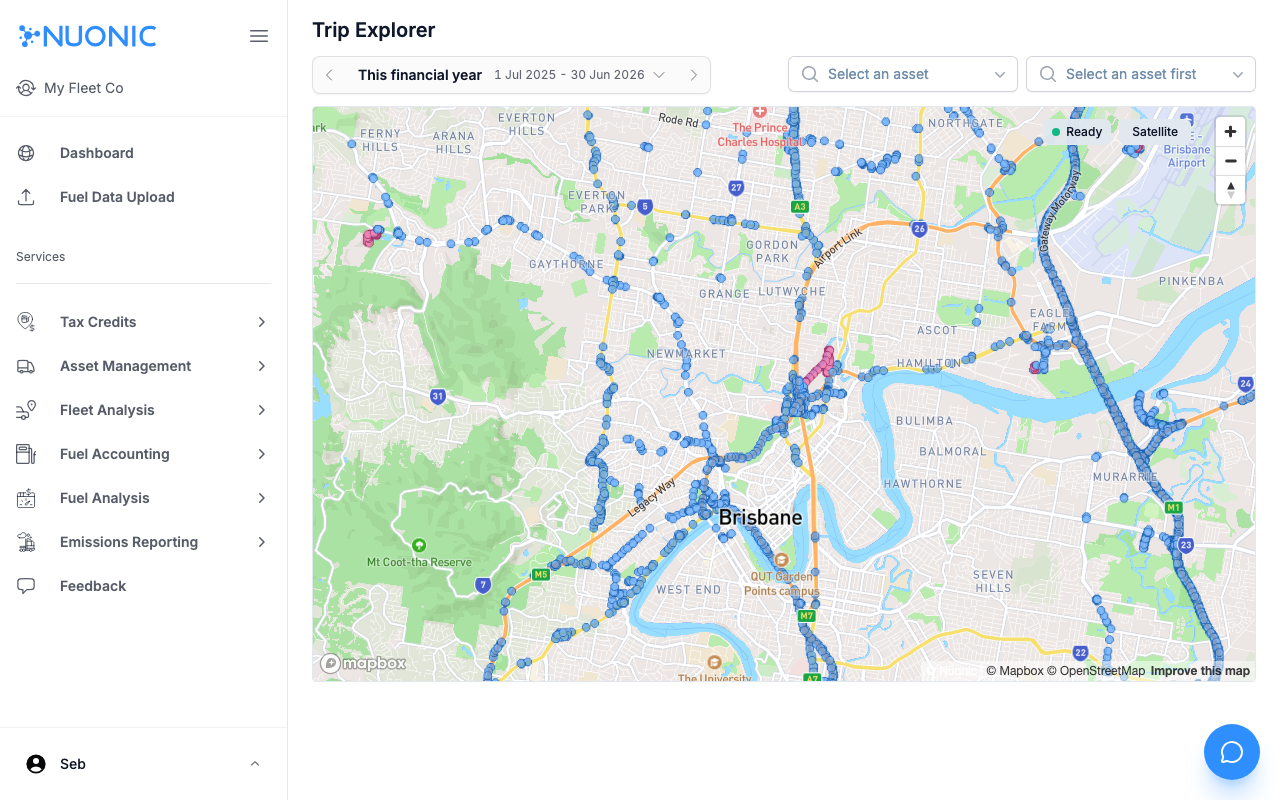
Trip Explorer shows individual vehicle trips on a map for a selected period. Use it to verify GPS-recorded routes, review on-public roads vs off-public roads activity, and inspect individual trip details for FTC audit purposes.
Prerequisites
- You are logged in to Nuonic.
- Your GPS telematics provider is connected and trip data is available.
Steps
- In the left sidebar, select
Trip Explorer(under Tax Credits or via the main navigation). - Set the
Date rangeusing the date picker at the top. - Optionally filter to a specific asset using the
Select an assetdropdown, or a specific trip usingSelect a trip. - Use the
Road/Satellitetoggle to switch map view. - Trip positions appear as coloured dots on the map. Click any point on the map to open a
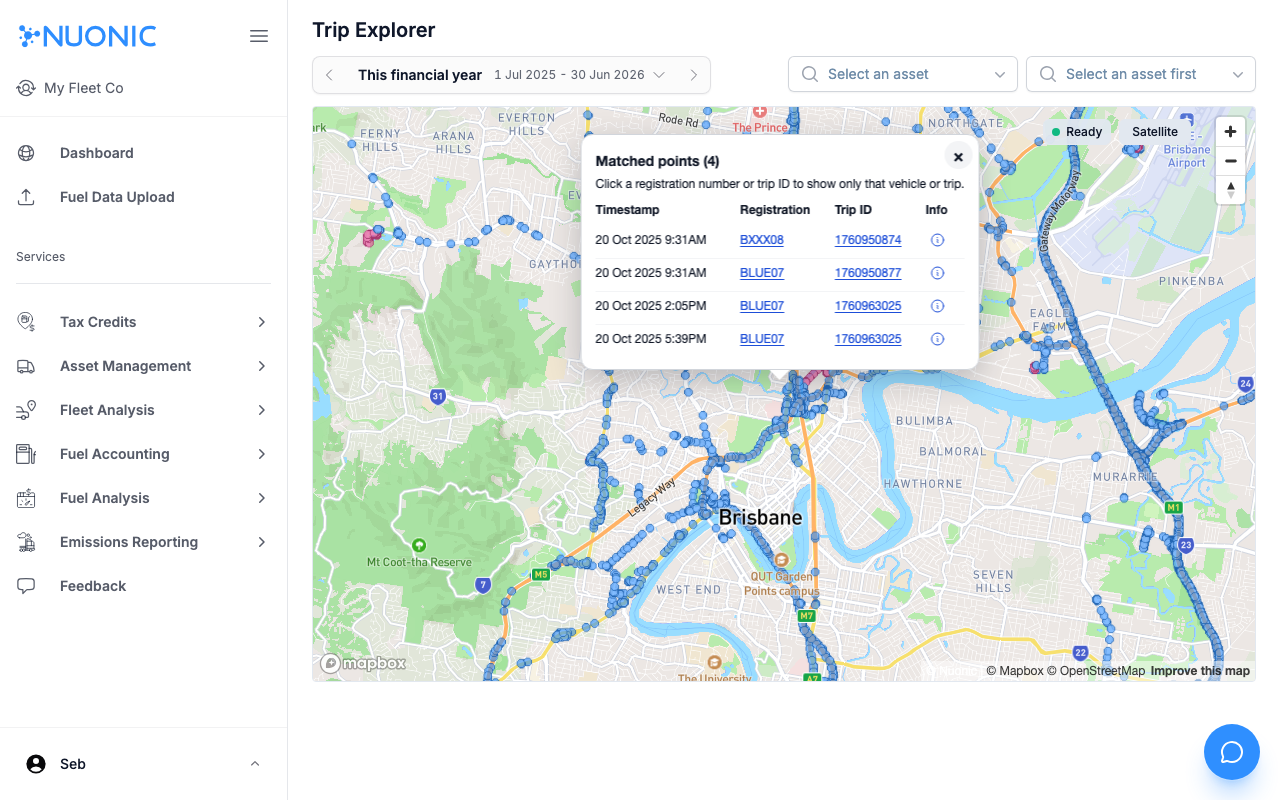
Matched pointspopup showing all trips recorded at or near that location. - The popup table shows each matched point's
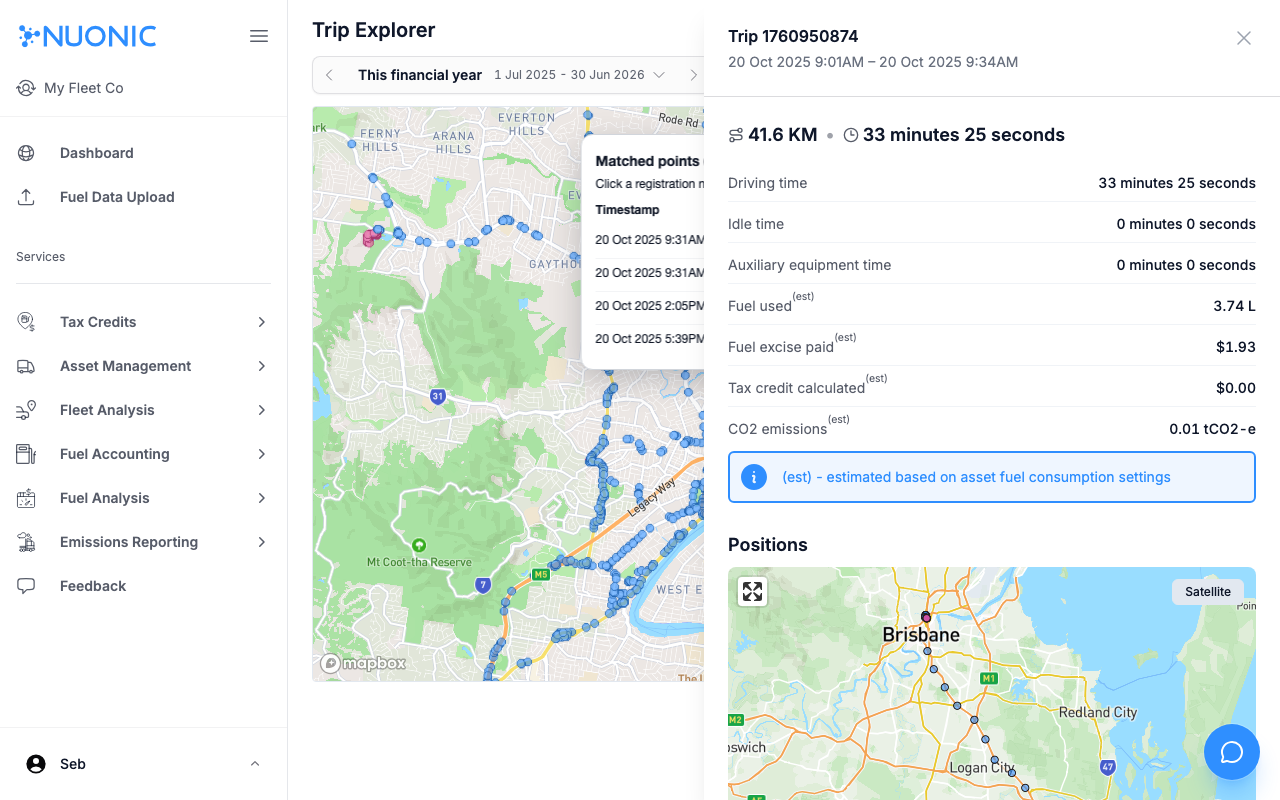
Timestamp,Registration, andTrip ID. Select a registration or trip ID to filter the map to that vehicle or trip. - Select the info icon on any row to open the trip details panel, which shows the full trip summary — distance, duration, fuel used, tax credit eligibility, and emissions.
Screenshots
Trip positions appear as coloured dots across the map. Click any point to see which trips passed through that location.
Clicking a map point opens the Matched points popup. Select a registration or trip ID to filter the map, or select the info icon to open trip details.
The trip details panel shows the full summary for that trip — distance, duration, equipment time, fuel use, tax credit calculation, and emissions estimate.
Troubleshooting
- If no dots appear on the map, confirm the date range overlaps with when assets were active and connected.
- If a click returns no matched points, try clicking on a visible coloured dot rather than an empty area of the map.
- If an asset is not listed in the dropdown, it may not have GPS data for the selected period.