Overview
Use the asset register to make sure each vehicle has the data Nuonic needs for accurate FTC apportionment.
Steps
- Sign in to Nuonic.
- In the left navigation, go to
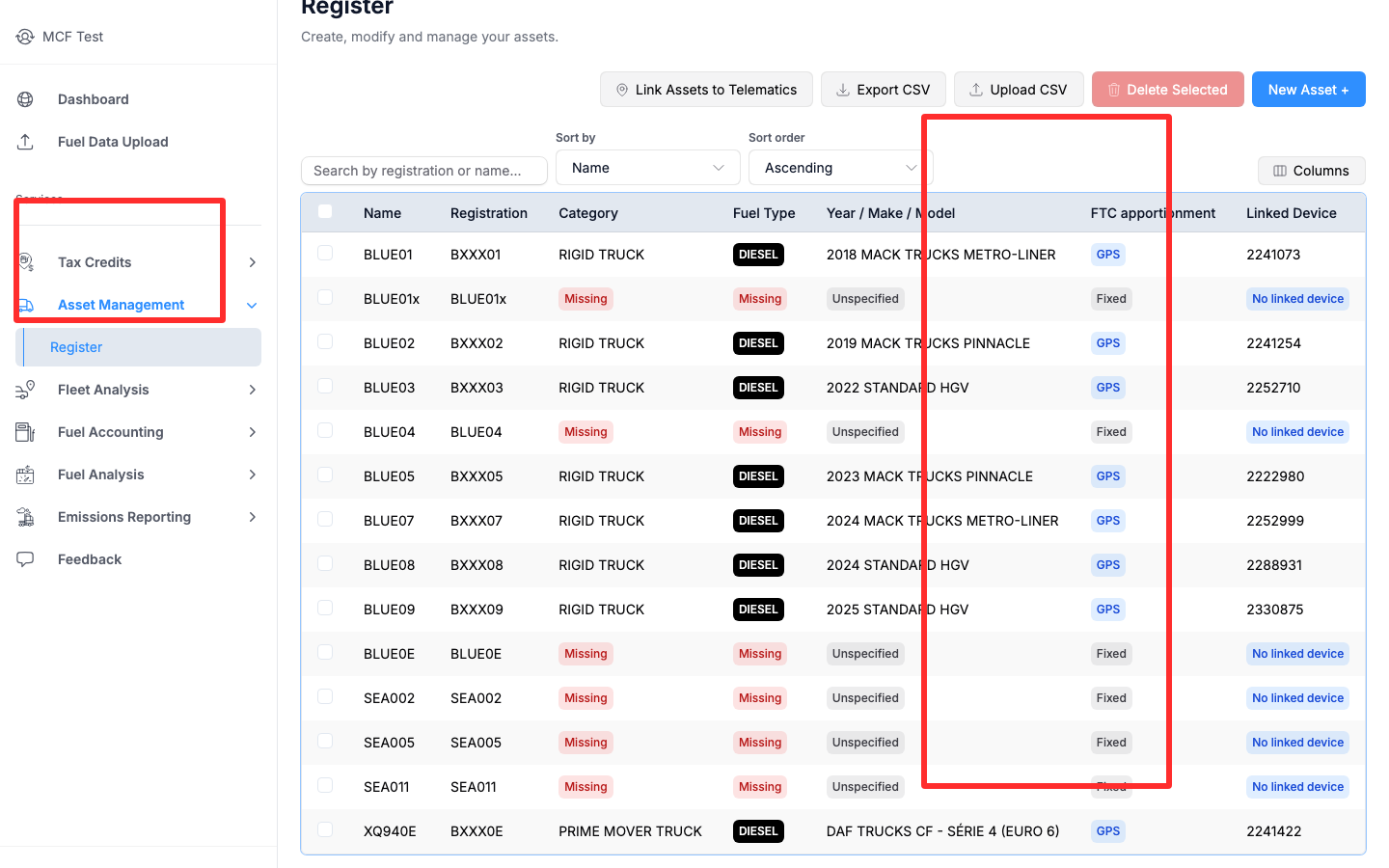
Asset Management. - Select
Register. - Find the vehicle using the search box (
Search by registration or name...). - Open the asset record and confirm the required details are complete:
RegistrationCategoryFuel TypeYear / Make / ModelFTC apportionmentstatusLinked Device
- Fix any fields marked as missing.
- Save your updates and confirm the asset shows the expected apportionment and device link status.
- Return to
Tax Credits > GPS ApportionmentorTax Credits > BAS Reportsand verify results for the next run period.
Screenshots
Asset Management > Register page:
Troubleshooting
- If an asset shows
No linked device, link the correct telematics device and recheck after sync. - If key fields still show
Missing, verify your CSV upload mapping or manual entry values. - If updates do not affect reports, regenerate the affected report period after data sync completes.