Overview
Nuonic automatically adds GPS-connected assets to your register where possible. We pull available vehicle data from your telematics provider and run a lookup against National Heavy Vehicle Regulator (NHVR) records to pre-fill specification details.
In some cases, you may still need to manually add, remove, or deactivate assets. This guide covers those manual controls.
Steps
- Sign in to Nuonic.
- Go to
Asset Managementin the left navigation. - Select
Register. - Find and open the asset you want to update.
- To remove an asset from reporting but keep its record, use the edit drawer and scroll to
Active (included in reporting). - Uncheck
Active (included in reporting)and clickSave. - To include the asset again later, reopen the asset, re-enable
Active (included in reporting), and save. - Only use
Deleteif the asset should be removed permanently from the register. - If an asset was not auto-added from telematics, use
New Asset +orUpload CSVto add it manually.
Deactivate vs delete
Deactivate(recommended): removes the asset from reporting but keeps the asset record in the register for future use.Delete: permanently removes the asset record.
Screenshots
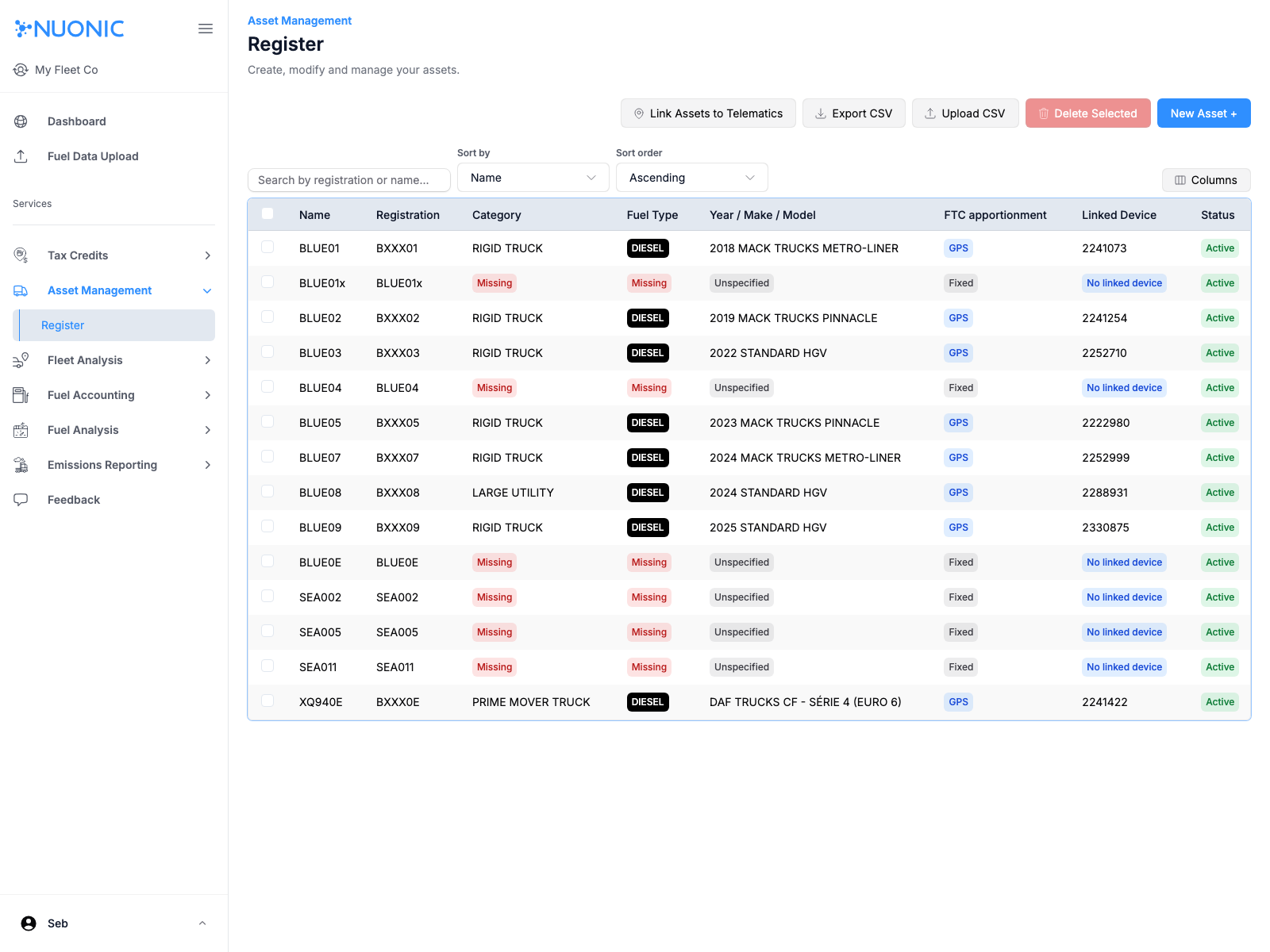
Asset Management > Register where you can open an asset record:
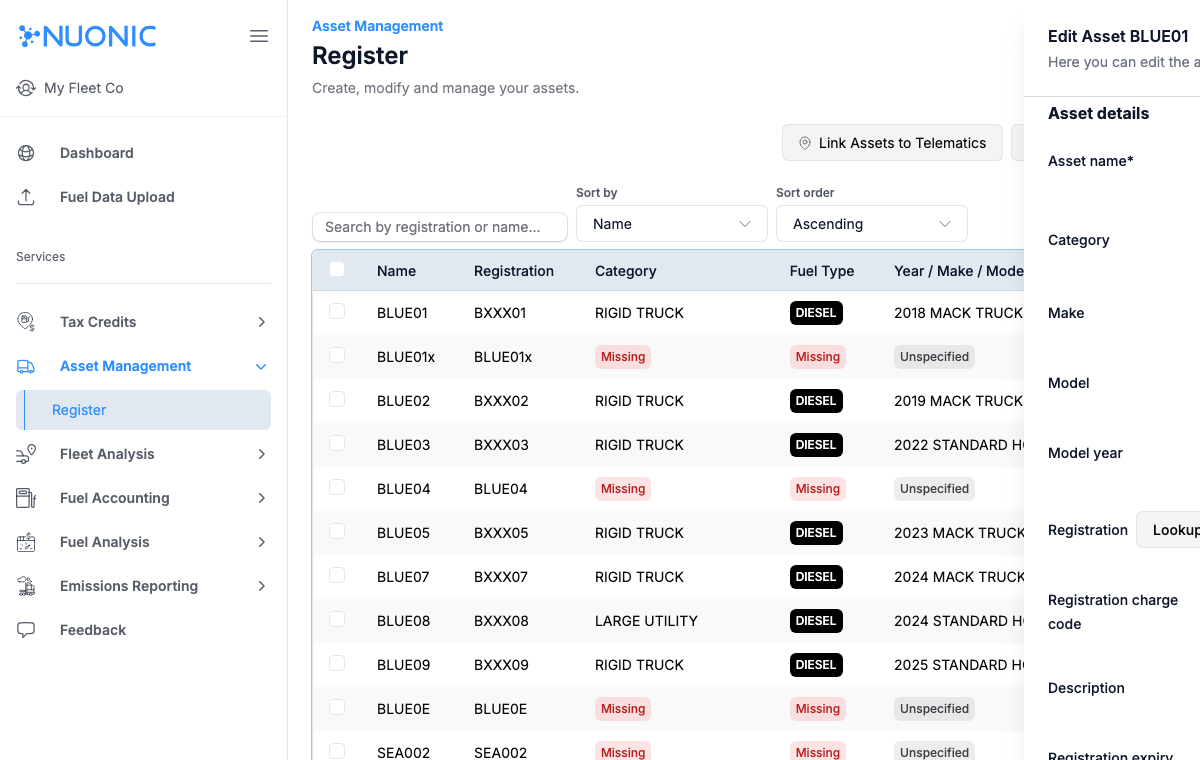
Edit drawer with Active (included in reporting) highlighted:
Troubleshooting
- If
New Asset +,Upload CSV, orDeleteis unavailable, check user permissions. - If deactivated assets still appear in reports, reopen the relevant period in
Tax Credits > GPS Apportionmentafter saving changes. - If auto-added vehicle details are incomplete, review the asset fields and update missing values before rerunning reports.