Overview
Use this guide to access Nuonic FTC reporting in two ways:
- Monthly downloadable reports (
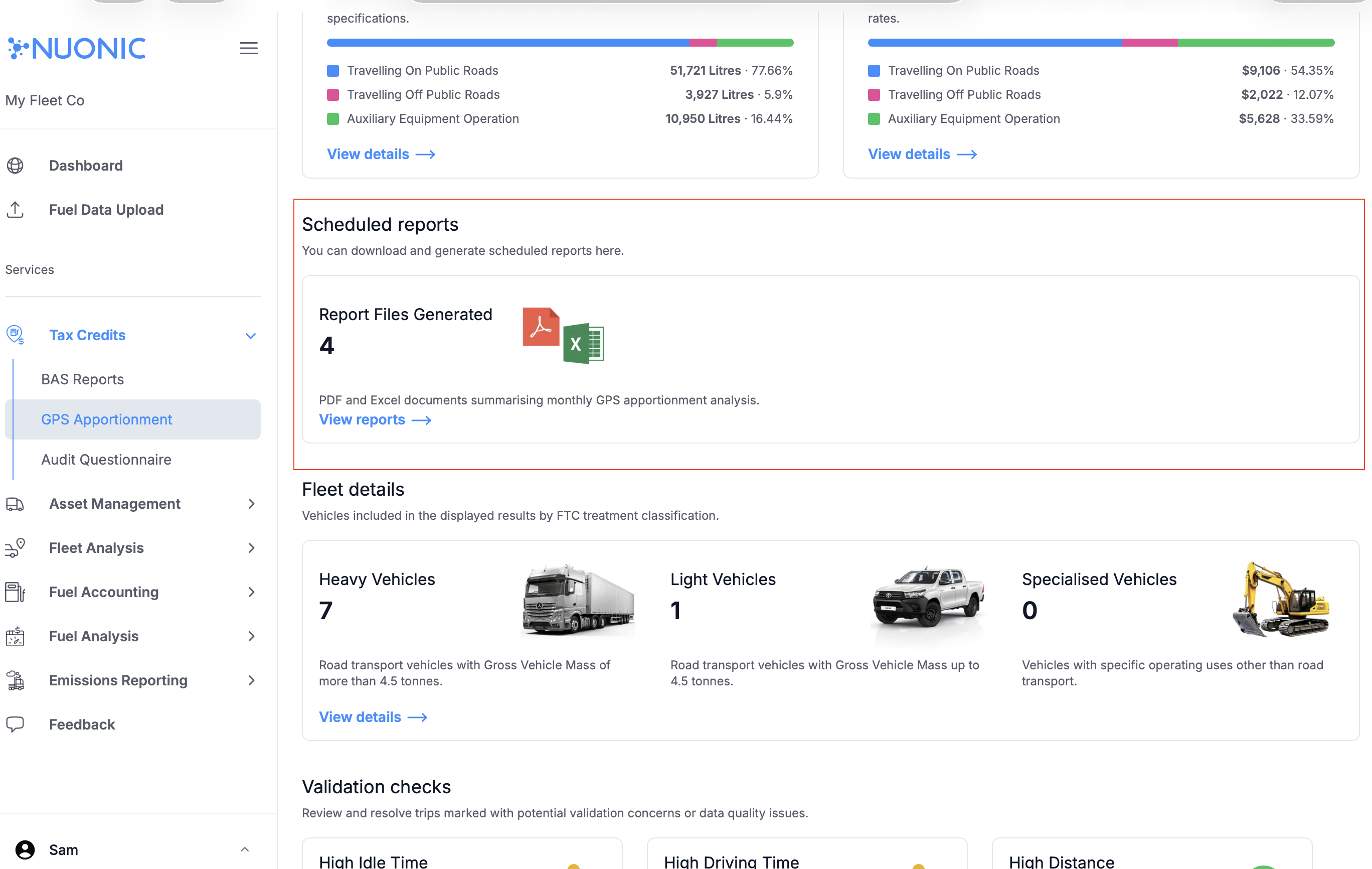
PDF/Excel) inTax Credits > GPS Apportionment > Scheduled reports. - Dynamic on-screen results for any period using
View detailscards on theGPS Apportionmentpage.
Steps
- Sign in to Nuonic and confirm your client is selected.
- In the left navigation, go to
Tax Credits. - Select
GPS Apportionment. - Set the
Date rangeto the period you want to review. - Scroll to
Scheduled reports. - Open
View reportsto access monthly report files. - Download the required
PDForExcelreport for the month you need. - For dynamic period-based analysis, return to the top
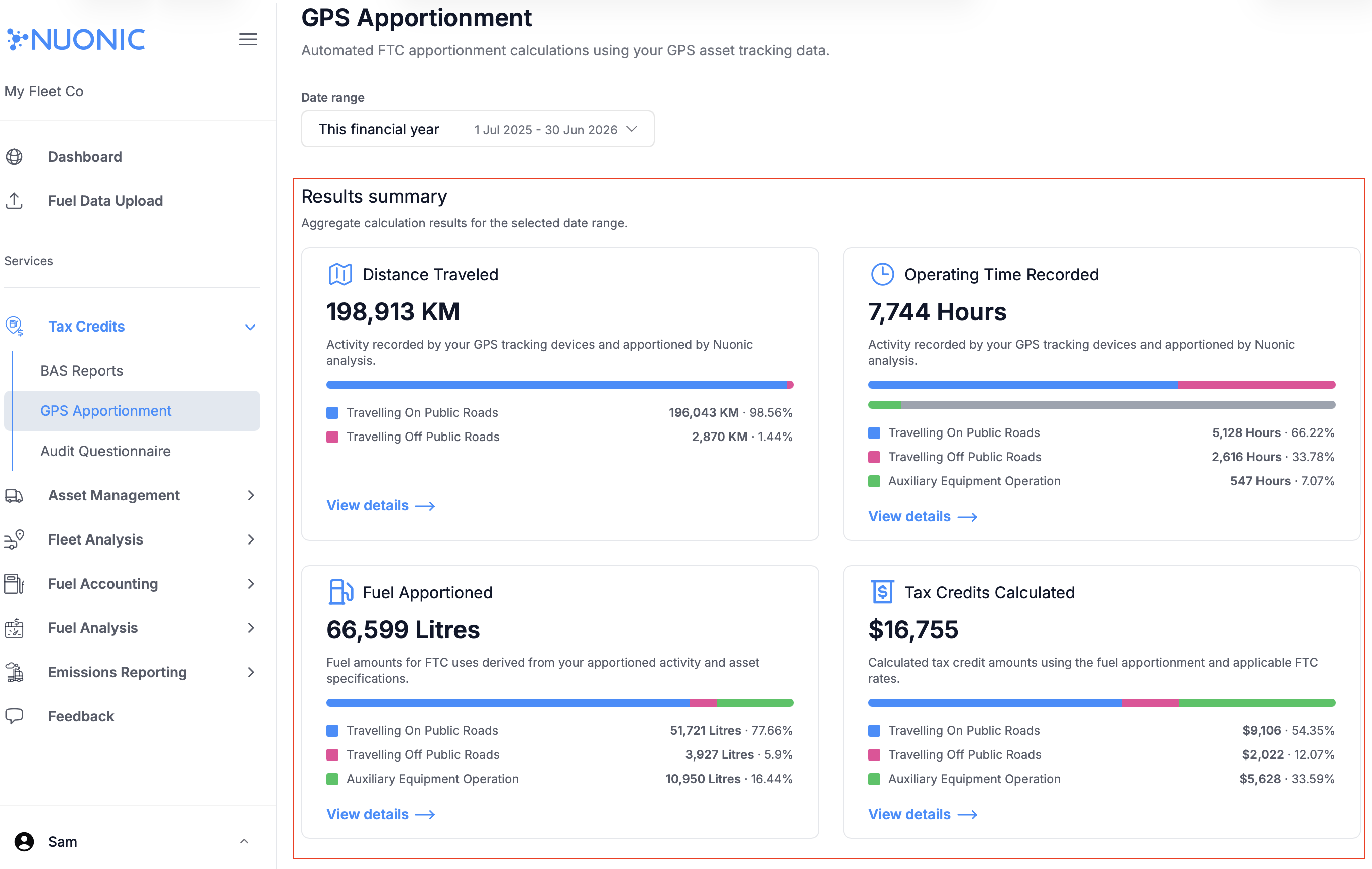
Results summarycards. - Select
View detailson a metric card (for example distance, fuel, or FTC) to open detailed data tables for the selected date range.
Screenshots
Scheduled reports area for monthly downloadable PDF/Excel files:
Results summary cards where View details opens dynamic tables for the selected date range:
Troubleshooting
- If
GPS Apportionmentis missing, confirm your user has the required feature access. - If
Scheduled reportshas no files, confirm monthly processing has completed for that reporting month. - If
View detailsdata looks incomplete, recheck theDate rangeand confirm GPS/fuel inputs were uploaded for that period.