Overview
GPS data apportionment and fuel purchase records work asynchronously. In order to combine and assign the fuel to the right assets, you would need to create a BAS report for the period you wish.
Steps
- Open
Tax Credits > GPS Apportionment. - Change
Date rangeto your required period. - Review the assets and ensure the business fuel use is set appropriately based on the asset.
- Save the asset details in case there are any changes made.
- Click on
Create FTC report.
Screenshots
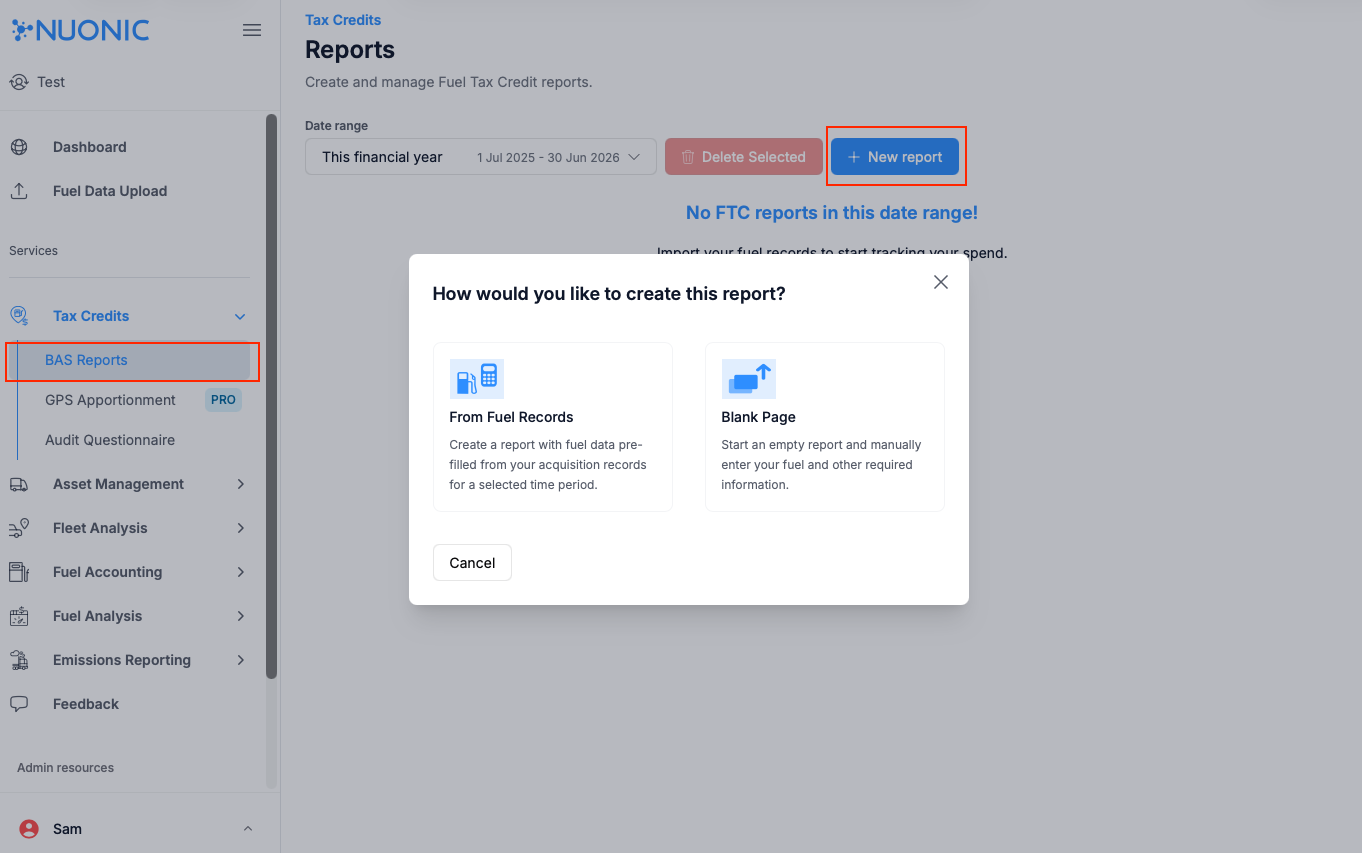 Shows the navigation section used to create your BAS report.
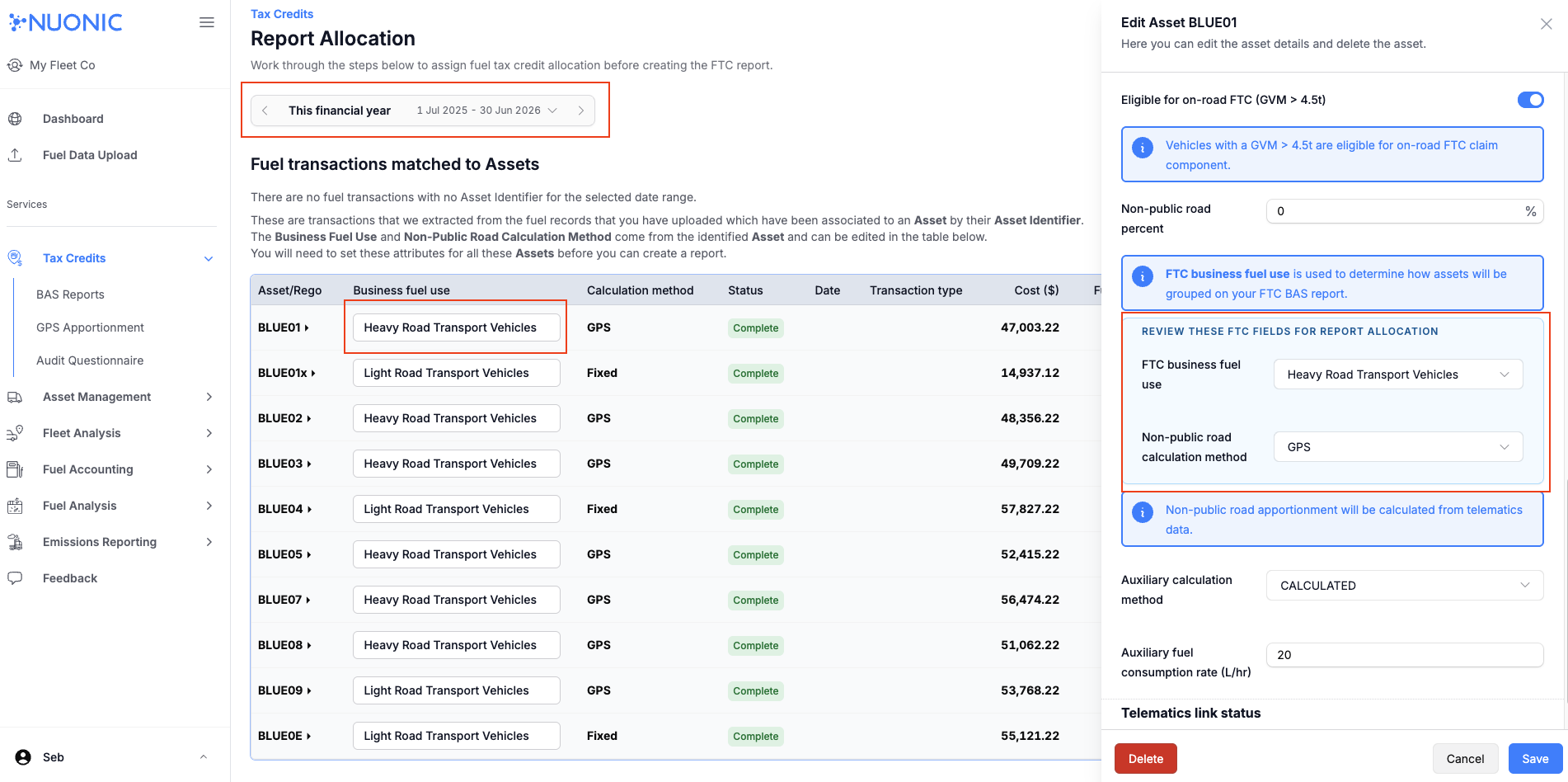 Shows where to allocate your fuel uploads and verify the asset details.
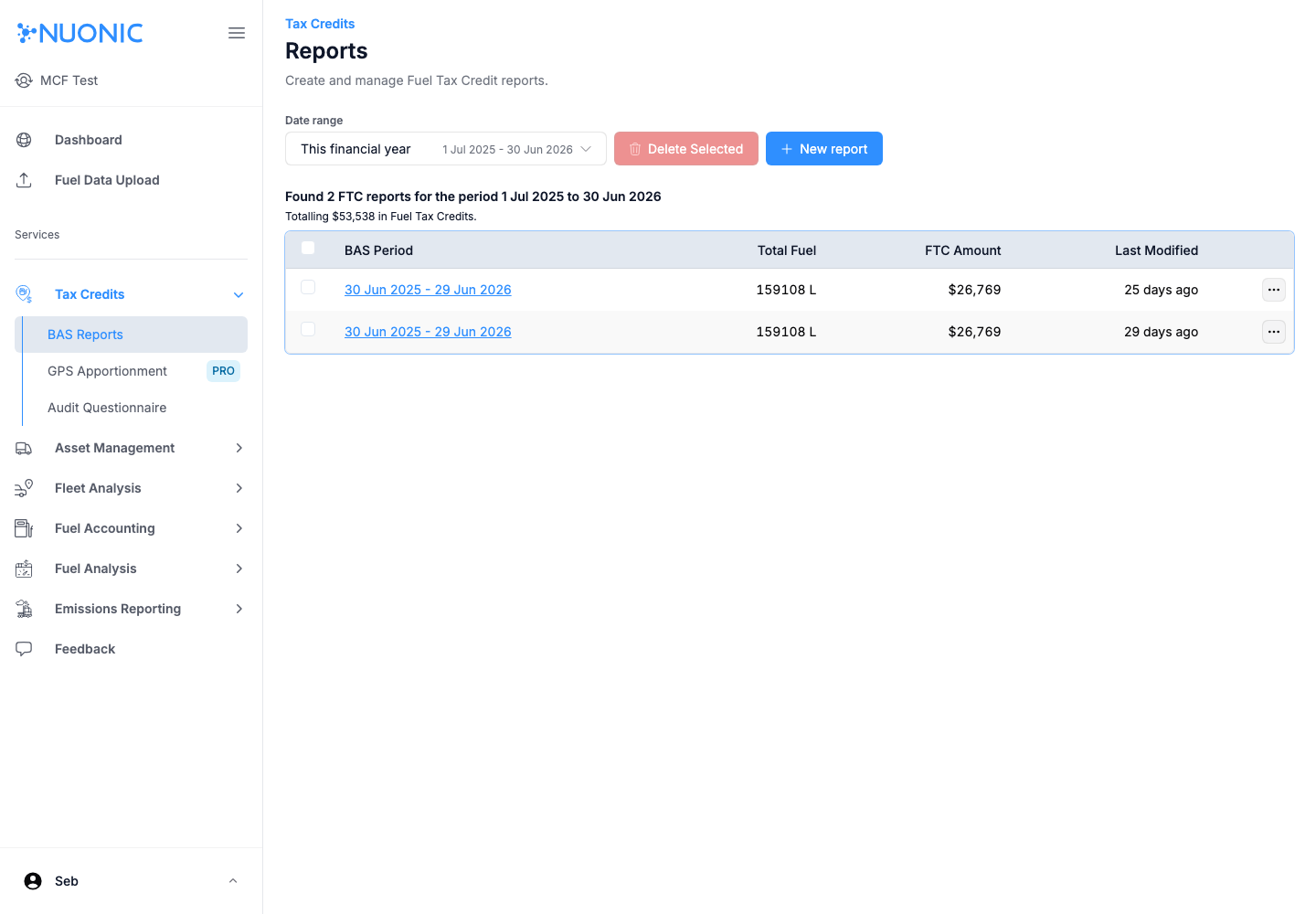 Shows the generated BAS report section.
Troubleshooting
- If custom periods show no data, confirm GPS and fuel inputs exist for that date range.
- If
New reportis unavailable, check your permissions or subscription settings.