Overview
The Dashboard brings together your fuel tax credit (FTC), fuel and fleet activity summaries for the selected account and period. Use it to spot missing data, review recent results and open the tools behind each figure. The values shown depend on the data available for your account.
Steps
- Sign in to Nuonic and select
Dashboardfrom the left navigation. - If you have access to more than one account, check the account name at the top of the navigation and select the one you want to review.
- Use the period selector beside the welcome message to choose a month or date range. The arrows move to the previous or next period.
- Select
Filterto narrow the view byBusiness Unit,TagsorCategory, then selectDone. Check any active filter chips if a figure is lower than expected. - Select
Add fuel datato open the upload page when you need to add fuel records.
Dashboard cards
- Calculated Tax Credit shows the GPS-calculated FTC result for the selected period. When fuel records are available, the bar shows how much of the modelled fuel use is supported by those records. The month tiles show statuses such as
Reported,RunningorOpen; select a tile to review that month inGPS Apportionment. Treat this as a working result to review, not a substitute for checking your final claim. - Improvement Actions highlights items that may affect the accuracy or value of your results, such as missing asset FTC details, devices that have stopped reporting or old fuel data. Select an action to open the relevant tool.
- Modelled Against Purchased compares GPS-modelled fuel litres with litres in your fuel records. Select
Compare in Detailfor a closer look. If no fuel records are available for the period, the card explains that there is nothing to compare yet and offers an upload action. - Fuel Use breaks apportioned fuel into travelling on public roads, travelling off public roads and auxiliary equipment operation, where data is available.
- Fleet Activity shows how many assets reported GPS activity, along with distance, operating hours and days covered. Select
View Fleet Activityto inspect the daily view.
More on the page
- Jump to links to tax credit reports, fuel data upload, the asset register, Trip explorer, fleet activity and geofences.
- Upcoming events shows a BAS submission-date reminder and FTC rate changes. Select a card to check the linked ATO information; confirm which reporting dates apply to your business.
- Learn more links to related Help Centre guides.
New accounts may see a Quick start guide instead of the summary cards. The full dashboard appears after the introductory steps are marked complete, or if you choose Skip intro. Skipping the intro does not connect GPS tracking or import fuel records for you.
Screenshots
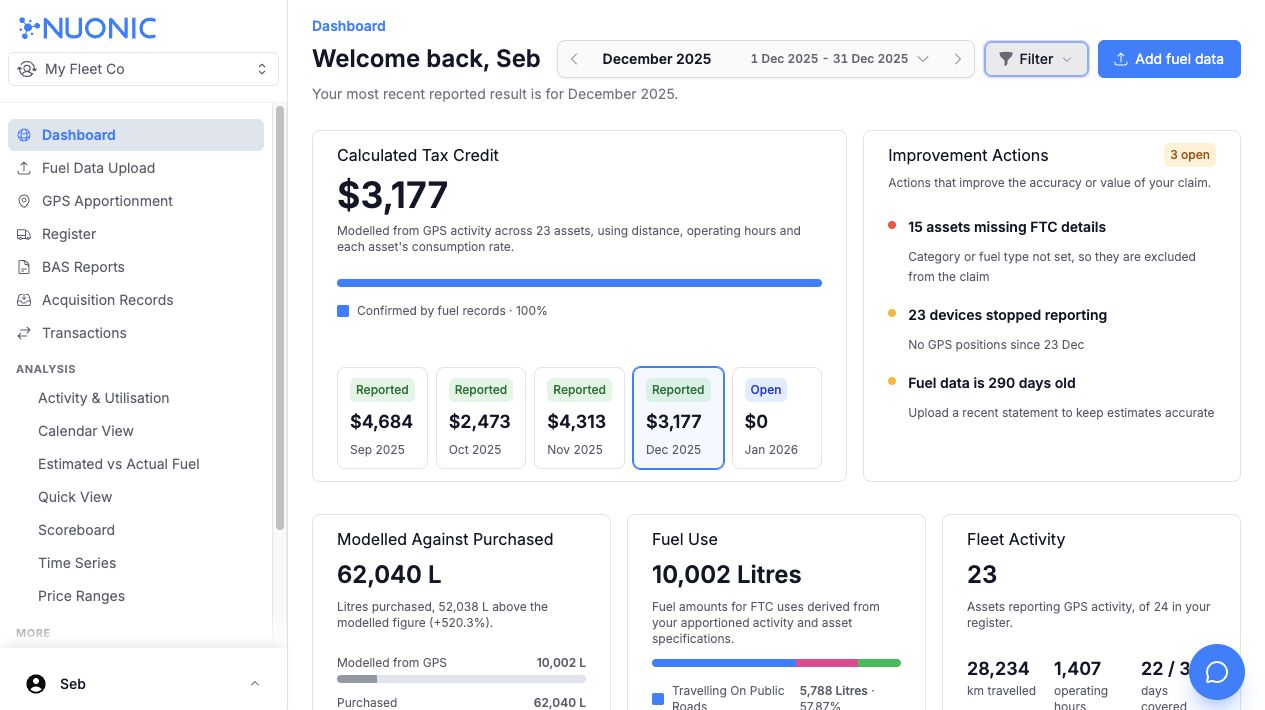 The dashboard overview in a development account. Amounts and action counts are examples and will differ for your account.
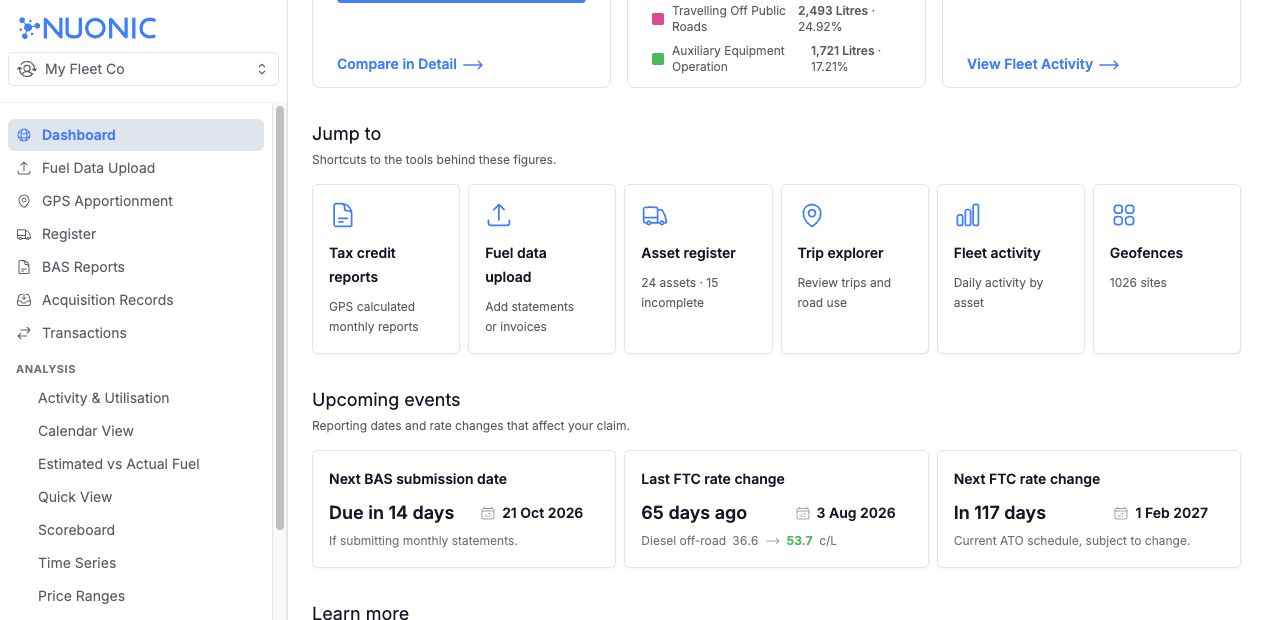 Use the shortcuts and event cards to open the tools and source information behind the summaries.
Troubleshooting
- If a card has no results, check the selected account, period and filters. GPS-based figures also need an active tracking connection and activity for that period.
- If the tax credit card says
Estimateor the purchased-fuel comparison has no data, check whether fuel records have been imported for the period. - Improvement actions appear only when the dashboard detects a relevant issue; the list will vary between accounts.