Overview
View all fuel cards associated with your account and assign friendly names or link cards to specific assets. Fuel cards are created automatically when you upload fuel statements.
Prerequisites
- You are logged in to Nuonic.
- At least one fuel statement has been uploaded containing fuel card data.
Steps
- In the left sidebar, select
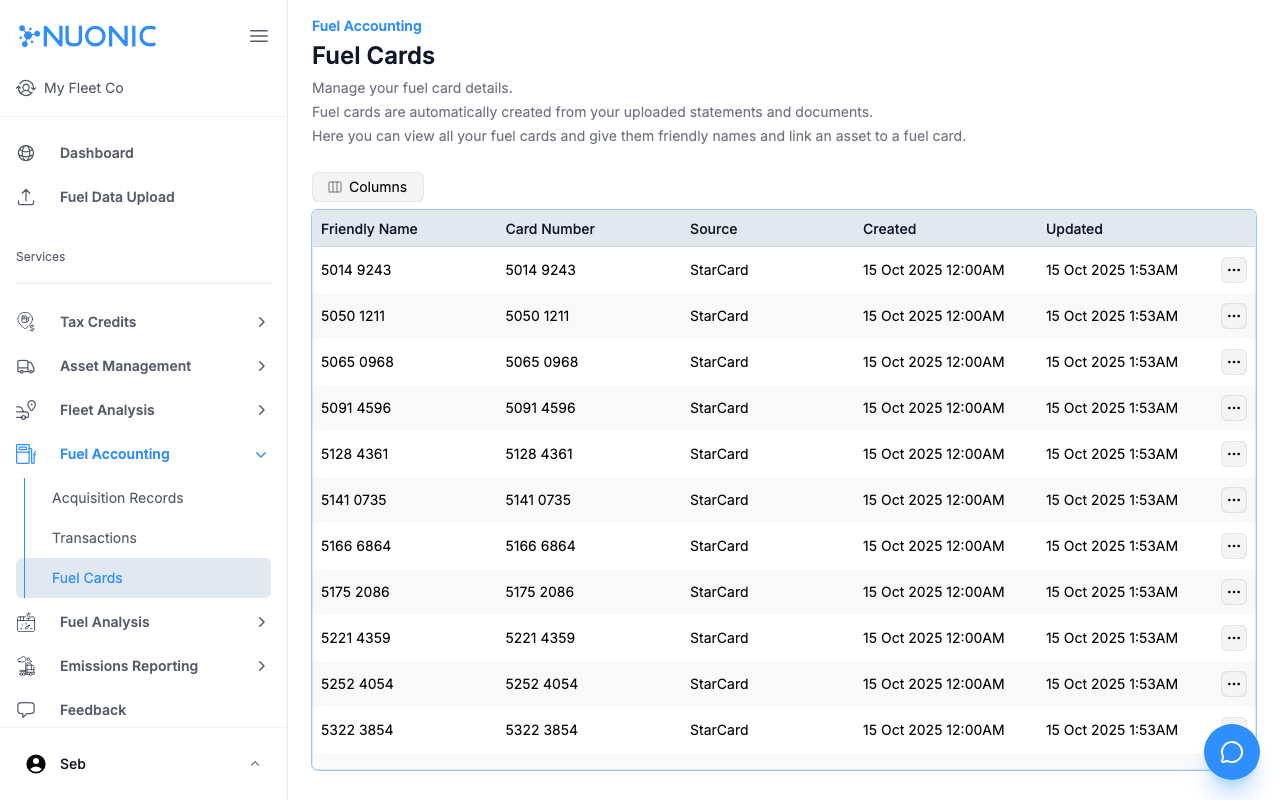
Fuel Accounting, thenFuel Cards. - Review the list of cards showing
Friendly Name,Card Number,Source,Created, andUpdateddates. - To edit a card, select the
···action menu on the right of the row. - Update the
Friendly Nameor link the card to an asset, then save.
Screenshots
The Fuel Cards page lists all cards detected from your uploaded statements. Use the action menu on each row to assign a friendly name or link a card to an asset.
Troubleshooting
- If no fuel cards appear, confirm that a fuel statement containing card data has been uploaded and processed successfully.
- Friendly names are optional — cards display their card number if no friendly name is set.